

Google BigQuery
Run queries in Google BigQuery and load the results into Storage tables, or as Avro files with the files variant.
The BigQuery data source connector loads data from BigQuery and brings it into Keboola. Running the connector creates a background job that
- executes the queries in Google BigQuery.
- saves the results to Google Cloud Storage.
- exports the results from Google Cloud Storage and stores them in specified tables in Keboola Storage.
- removes the results from Google Cloud Storage.
Initial Setup
Section titled “Initial Setup”Service Account
Section titled “Service Account”To access and extract data from your BigQuery dataset, you need to set up a Google service account. Go
to Google Cloud Platform Console > IAM & admin > Service accounts
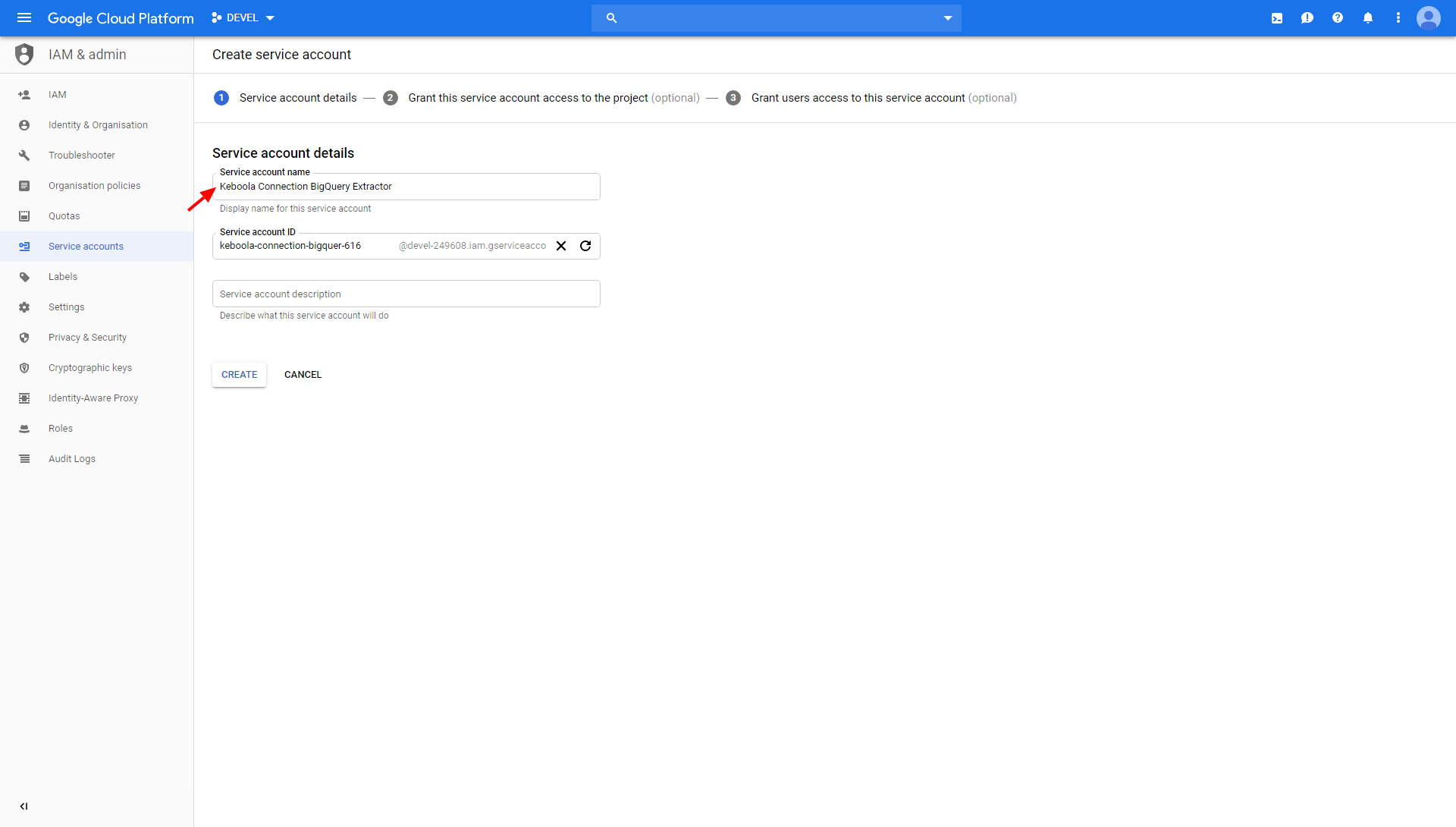
and select the project you want the data source connector to have access to. Click Create Service Account
and enter a Service account name (e.g., Keboola BigQuery connector).
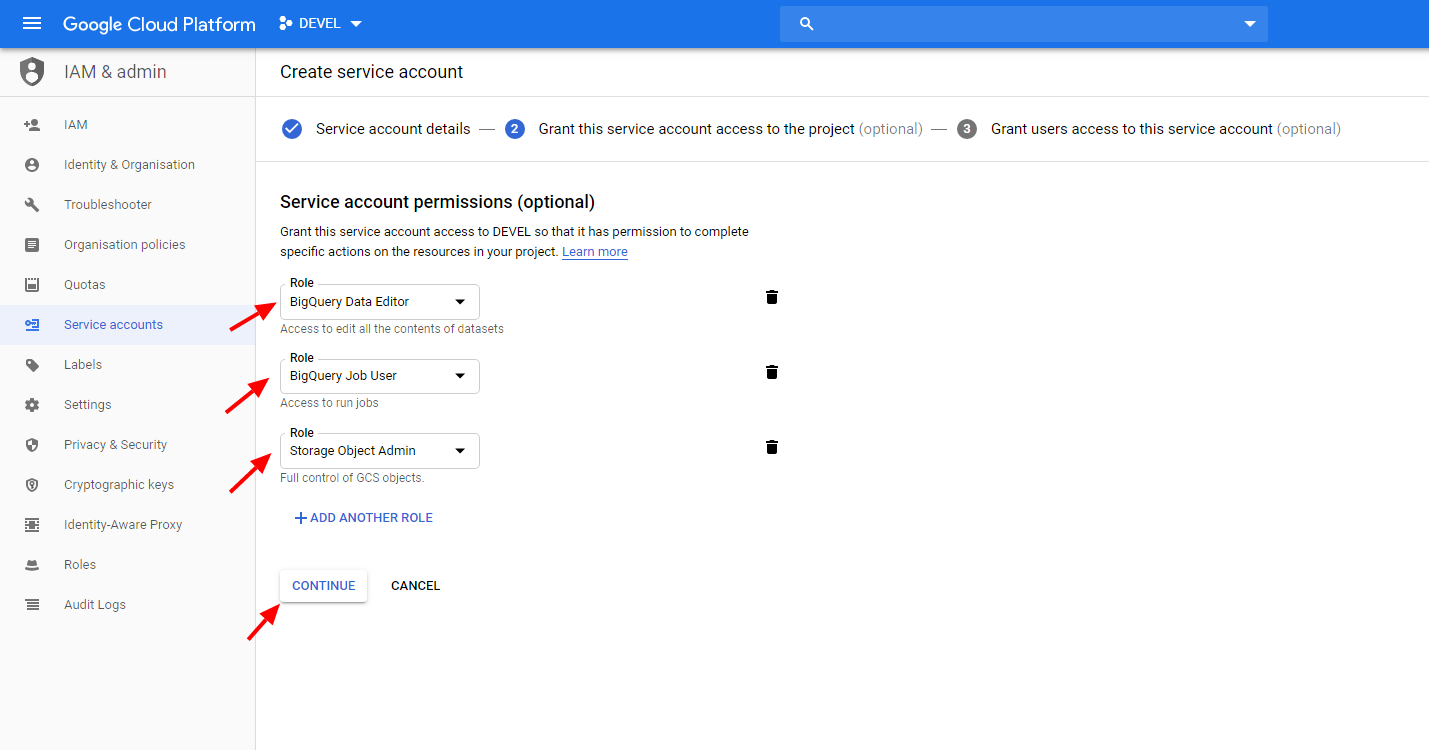
Then add the roles BigQuery Data Editor, BigQuery Job User and Storage Object Admin.
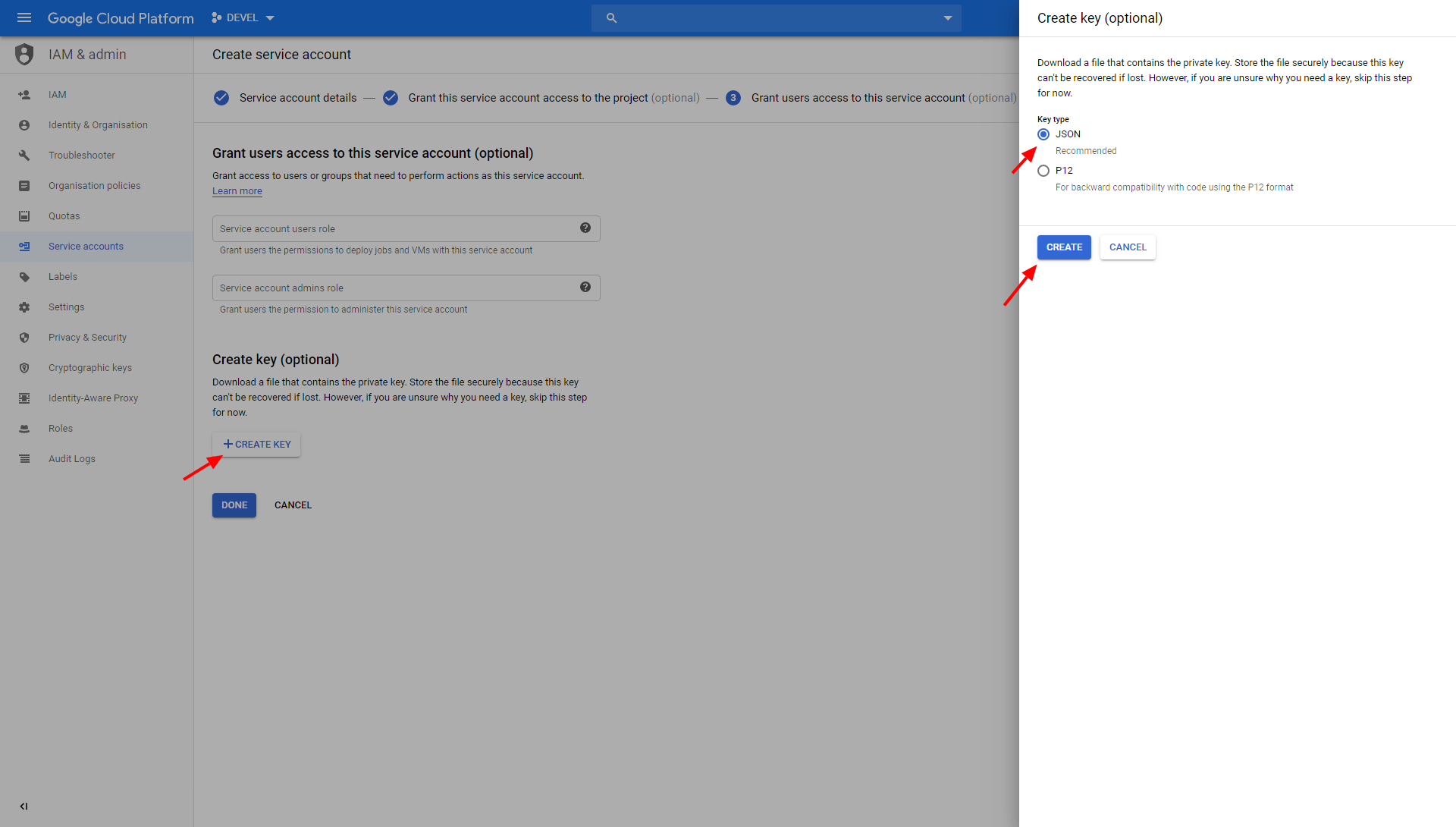
Finally, click + Create Key to create a new JSON key, and then click Create to download it to your computer.
Bucket
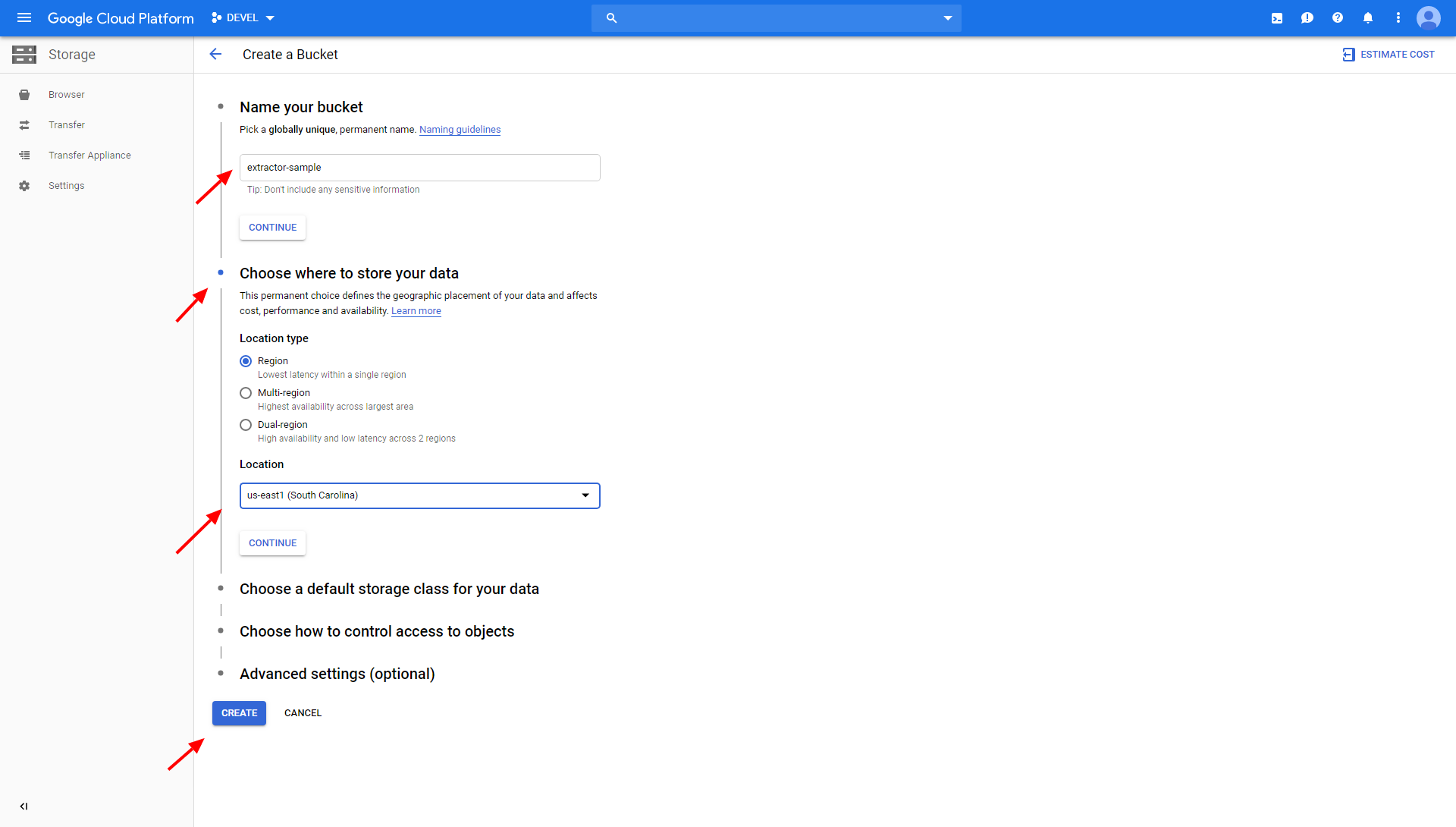
Section titled “Bucket”The data source connector uses a Google Storage bucket as a temporary storage for off-loading the data from BigQuery. Go to the Google Cloud Platform Console > Storage > Cloud Storage > Browser and click Create Bucket. Name the bucket and select its location (must be the same as of your dataset).
Do not set a retention policy on the bucket. The bucket contains only temporary data and no retention is needed.
Configure Extraction
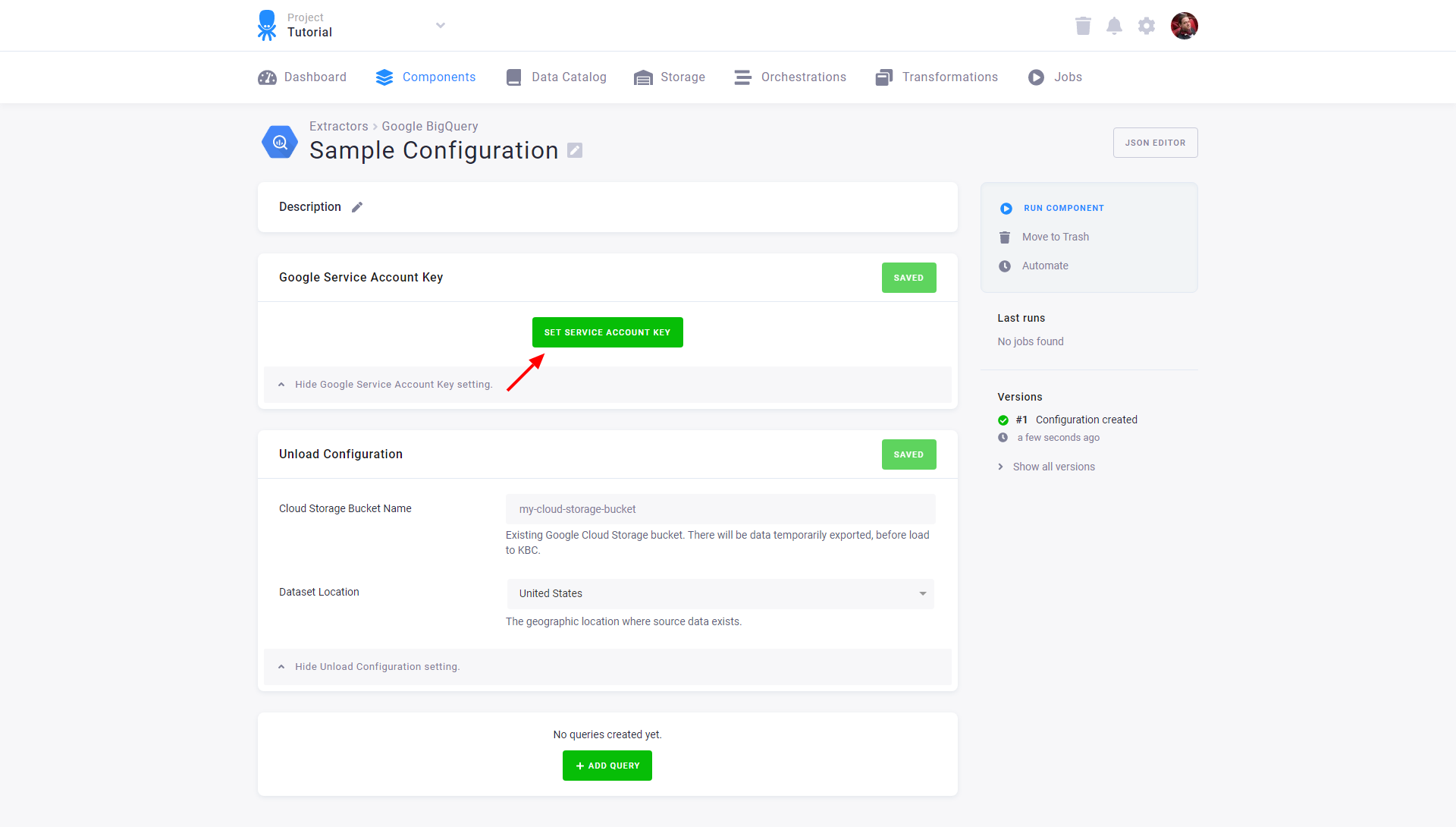
Section titled “Configure Extraction”Create a new configuration of the BigQuery connector. Click Set Service Account Key.
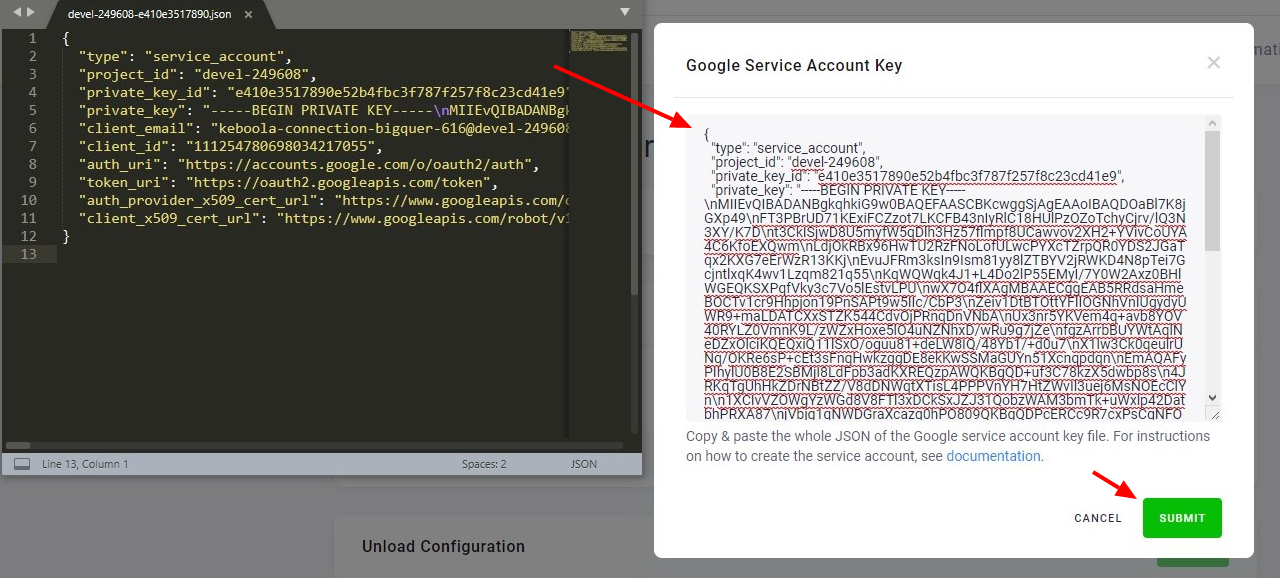
Open the downloaded key in a text editor, copy & paste it in the input field, and click Submit.
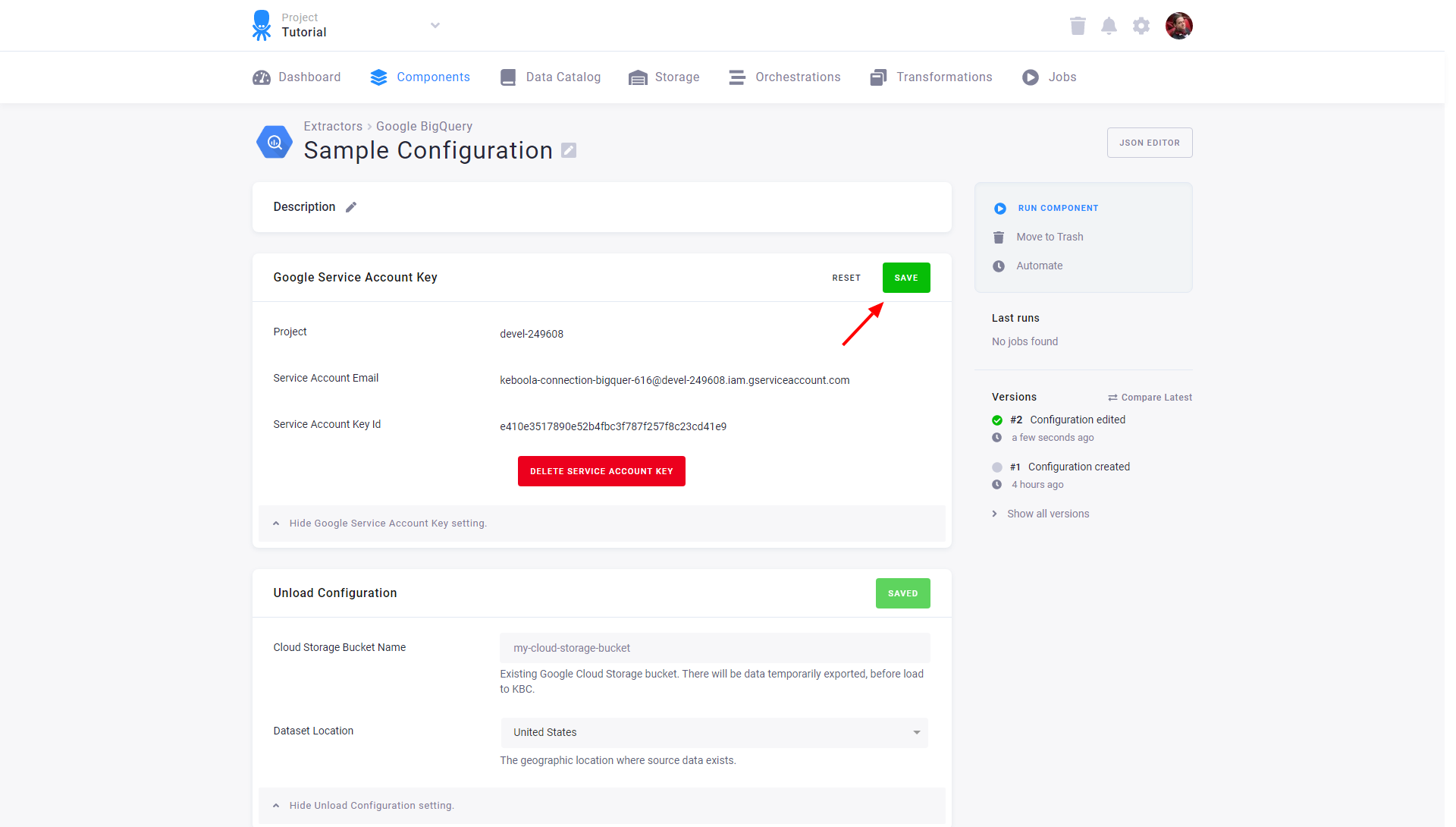
Click Save to store the credentials.
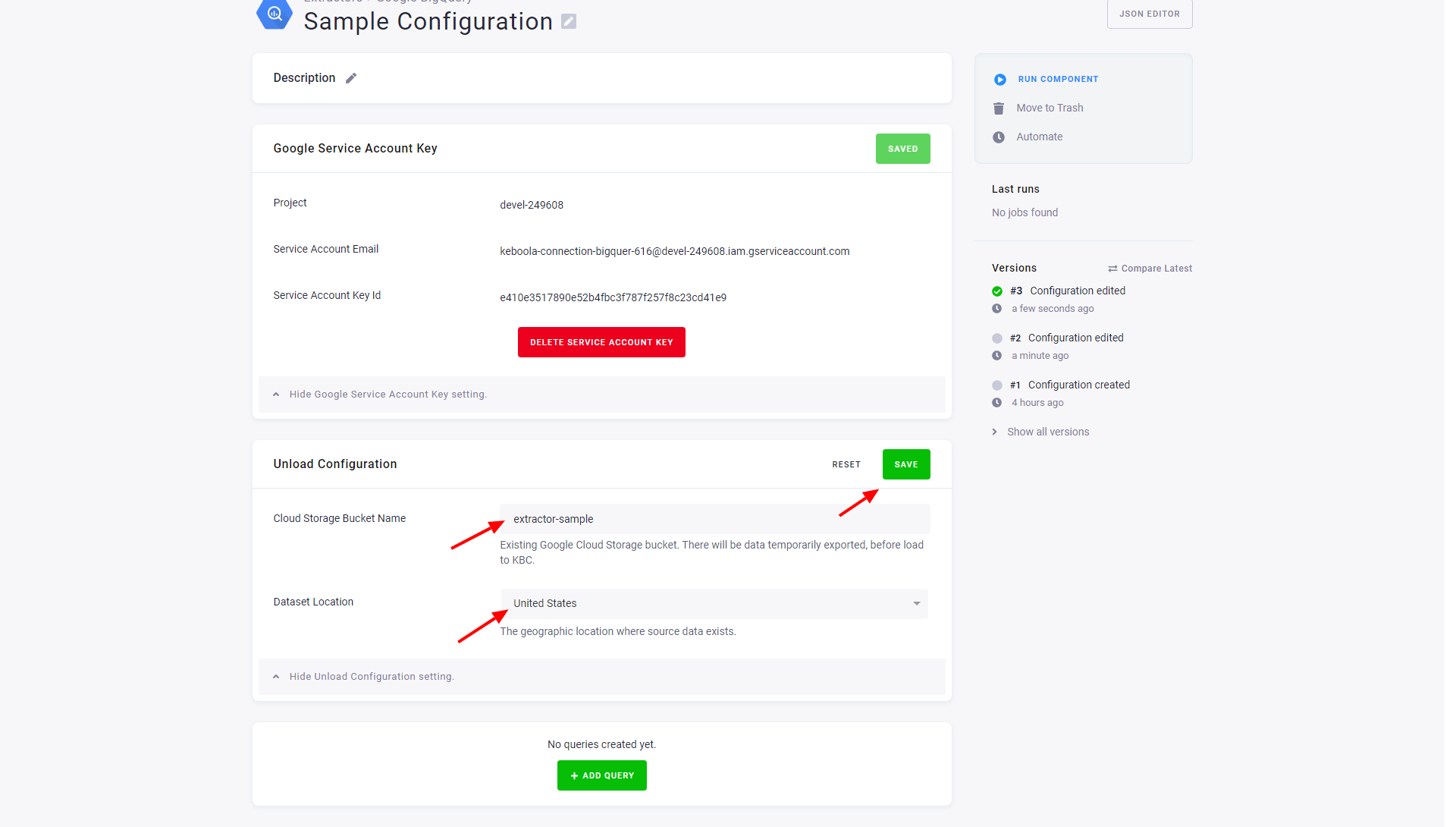
In the section Unload Configuration, enter Cloud Storage Bucket Name as the name of the bucket
you have created earlier, and select the correct Dataset Location. Click Save.
Configure Queries
Section titled “Configure Queries”Start by clicking the button Add Query.
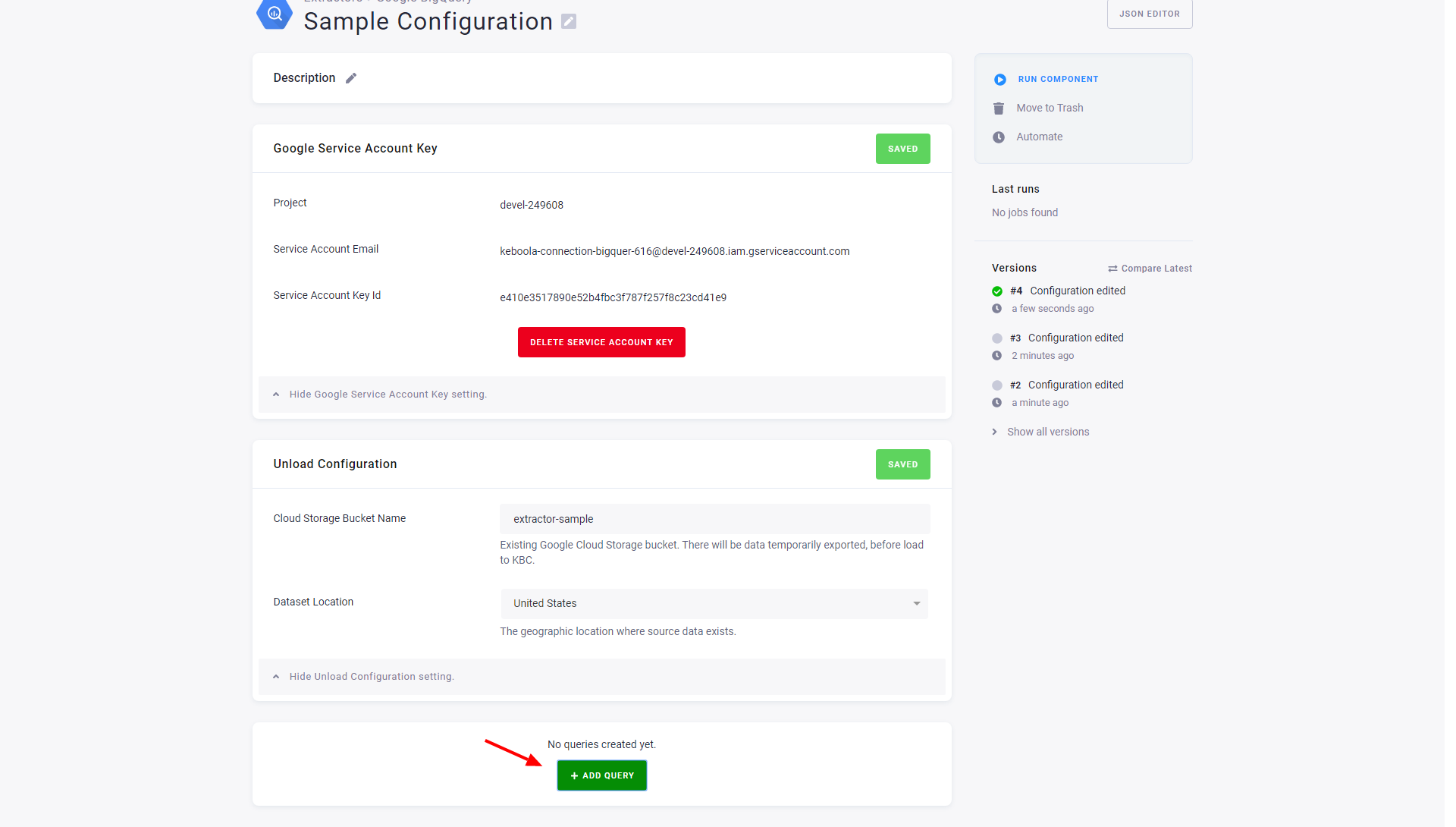
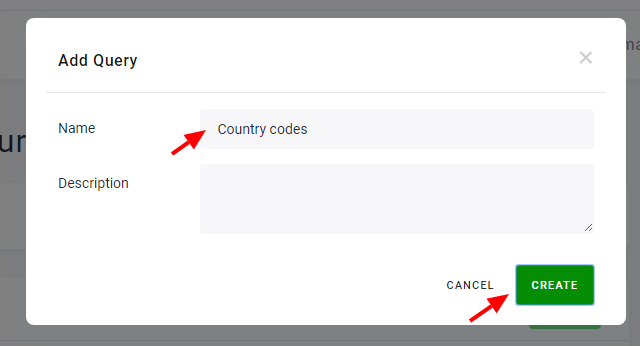
Name the query and click Create.
To learn how to modify your configuration, go to the SQL databases section.
Avro files variant
Section titled “Avro files variant”The Google BigQuery avro files connector (keboola.ex-google-bigquery-v2-avro-files) is configured the same way, with the service account, the bucket and the queries, but it does not write the query results into Storage tables. Each query’s result is exported to one Avro file in Storage Files instead. Use it when the next step of your pipeline works with files, for example a transformation or a processor that reads Avro.
Because each result goes to a single file, it is bound by BigQuery’s limit of 1 GB per exported file; a larger result fails. The main connector unloads its results into several files through a wildcard, so this limit does not apply to it.